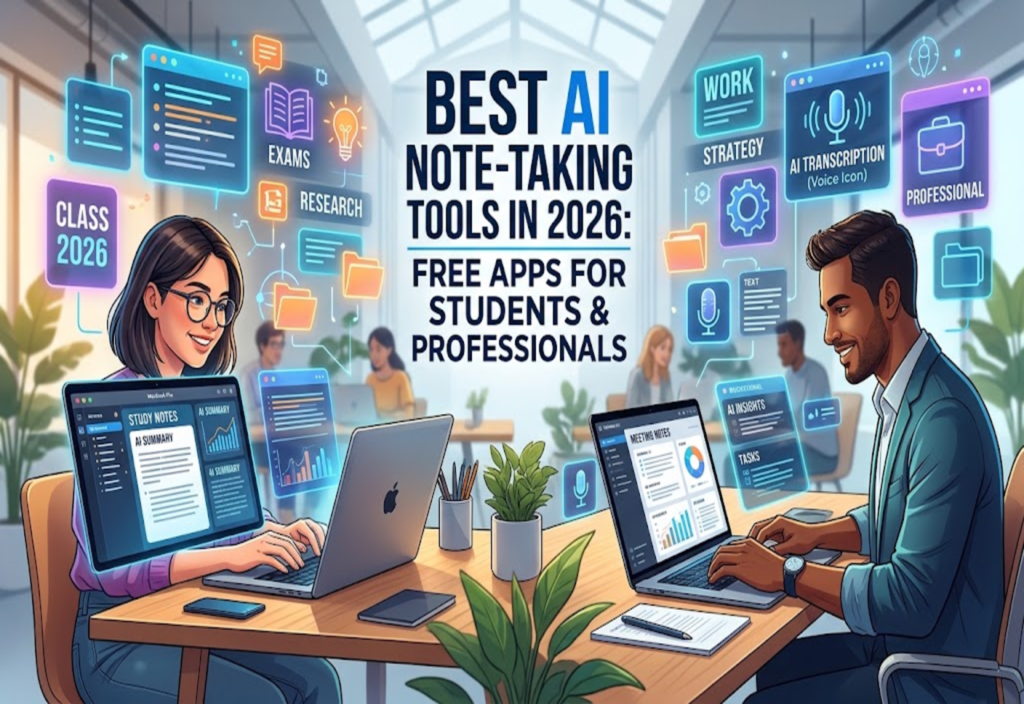
Taking notes is an important part of studying and working. Students write down lesson points, while professionals record meeting details and project updates. However, keeping all these notes organised can take time. Fortunately, AI note-taking tools can make this task easier.
These tools can turn speech into text, summarise long documents, and help users find important information. Some apps focus on online meetings, while others are better for research, handwritten notes, or daily reminders. As a result, choosing the right tool depends on your needs.
Many apps offer free plans. However, some advanced features require payment. In this guide, you will discover the best AI note-taking tools in 2026, their main features, free options, and practical uses for students and professionals.
What Are AI Note-Taking Tools?
AI note-taking tools are apps that use artificial intelligence to help people collect and organise information. They can reduce the time spent on routine note-taking tasks.
For example, these apps may help you:
Turn recorded speech into written text.
Summarise long documents and articles.
Organise meeting notes into clear sections.
Create practice questions from study material.
Search saved notes using everyday language.
Turn rough notes into a clear outline.
Find important tasks, dates, and decisions.
However, AI does not always produce correct results. It may miss details or misunderstand a speaker. Therefore, always check important information before using it.
Best AI Note-Taking Tools in 2026
Each app has its own strengths. Some are designed for research, while others help users manage meetings, projects, and personal notes.
1. Google NotebookLM: Best for Research and Study Notes
Google NotebookLM is an AI research tool that helps users understand information from their own sources. It is especially useful for students, teachers, and researchers who work with long documents.
You can add supported source materials and ask questions about their contents. The tool can then help you understand key ideas without reading every section repeatedly.
Key features:
Summarises supported source materials.
Answers questions about uploaded documents.
Helps organise research and study notes.
Identifies relevant information from sources.
Creates study aids from available materials.
How students can use it
Suppose you have several long chapters to study for an examination. Instead of reading each chapter repeatedly, you can add supported documents to NotebookLM and request a summary. You can also ask for practice questions to test your understanding.
As a result, revision can become more organised. Still, check the original material to make sure the summary includes the important details.
How professionals can use it
Professionals can use NotebookLM to review reports, study technical documents, and prepare presentations. In addition, researchers can use it to explore ideas across several sources.
Free availability: A free version is available, although usage limits and features may change.
Limitation: The quality of the results depends on the source material. Therefore, verify important facts before relying on a summary.
Best for: Students, teachers, researchers, and professionals who work with long documents.
2. Notion: Best for Organised Notes and Projects
Notion combines note-taking, documents, task lists, databases, and project management. It is a useful choice for people who want to keep their work organised in one place.
You can create separate pages for different subjects, clients, and projects. Furthermore, its templates and databases can help you manage information without creating a new document for every task.
Key features:
Create notes and documents.
Organise tasks and project deadlines.
Build study planners and content calendars.
Share pages with colleagues.
Store research and project information.
Use AI assistance through eligible plans and features.
How students can use it
Students can create a page for each subject and store their lecture notes in one workspace. They can also build an assignment tracker with deadlines and revision tasks.
How professionals can use it
Freelancers can organise client details, project updates, and content plans. Similarly, small teams can use shared pages to manage tasks and store important information.
Free availability: Notion offers a free plan for personal use. However, access to its full AI features depends on the current plan and available allowances.
Limitation: The app may feel complicated if you only need a simple notes tool. Therefore, check the AI features included in your plan before subscribing.
Best for: Students, freelancers, content creators, and teams that need organised workspaces.
3. Otter.ai: Best for Meeting Transcription
Otter.ai helps users turn spoken conversations into searchable text. It can be useful for online meetings, interviews, and other discussions where written records are needed.
Instead of writing every sentence manually, you can review the transcript and focus on the main points.
Key features:
Transcribes supported conversations.
Creates searchable meeting records.
Generates AI meeting summaries.
Identifies speakers where supported.
Highlights important discussion points.
Helps organise meeting follow-ups.
How students can use it
With the required permission, students can use transcription to review lectures and group discussions. They can search for important words rather than replaying an entire recording.
How professionals can use it
Project managers and remote workers can review meeting notes to confirm decisions and identify follow-up tasks. Consequently, they may find it easier to keep projects organised.
Free availability: Otter.ai offers a Basic free plan. Its published offering has included 300 monthly transcription minutes and limits on recording length and imported files. Check the current plan for updated details.
Limitation: Background noise, accents, and technical words can affect transcription accuracy. Always review important details, and obtain the required permission before recording.
Best for: Professionals, students, and teams that need searchable transcripts.
4. Microsoft OneNote: Best for Digital Notebooks
Microsoft OneNote is a digital notebook for storing typed notes, handwriting, images, drawings, and other content. It is a practical choice for people who prefer a familiar notebook layout.
You can organise information into notebooks, sections, and pages. In addition, its Microsoft ecosystem integrations can make it useful for people who already work with Microsoft applications.
Key features:
Create notebooks for different subjects.
Combine typed and handwritten notes.
Add images and supporting material.
Organise notes into sections.
Search saved information.
Use supported Microsoft integrations.
How students can use it
Students can create a notebook for each semester and separate their subjects into sections. They can also add diagrams and handwritten explanations to make their notes easier to review.
How professionals can use it
Employees can store meeting notes, research findings, and project information. Meanwhile, people who work across several Microsoft applications may find it convenient to keep their notes in the same ecosystem.
Free availability: Basic OneNote functionality is available without a separate paid subscription for many users. Some advanced features depend on the account and eligible Microsoft services.
Limitation: OneNote is not automatically a complete AI transcription tool. Therefore, check which AI features are available to your account.
Best for: Students and professionals who prefer structured digital notebooks.
5. Obsidian: Best for Building a Knowledge Library
Obsidian is a note-taking app that helps users connect related ideas. It stores notes as local Markdown files, allowing users to create a personal knowledge library.
For example, an SEO specialist can link notes about keyword research, technical SEO, content planning, and website performance. Over time, these connections can make information easier to find.
Key features:
Store notes as local Markdown files.
Link related ideas and topics.
Organise notes with folders and tags.
Search a personal knowledge library.
Extend the app with community plugins.
Maintain control over locally stored notes.
How students can use it
Students can create connected notes for books, research papers, and important concepts. As a result, they can review how different ideas relate to one another.
How professionals can use it
Writers, developers, and researchers can build a long-term library of ideas and technical information. They can also connect project notes with useful references.
Free availability: Obsidian’s core application is free for personal use. Optional services may require payment, and AI features generally need additional integrations or plugins.
Limitation: Setting up a large knowledge library takes time. Some AI plugins also require an external service or API payment.
Best for: Writers, researchers, developers, and people who want to connect their notes.
6. Google Keep: Best for Quick Notes and Reminders
Google Keep is a simple app for saving short notes, reminders, and checklists. It is ideal for people who want to capture an idea quickly without managing a complicated workspace.
Key features:
Save ideas and reminders.
Create checklists.
Organise notes with labels and colours.
Save supported voice notes and images.
Access notes across supported devices.
How students can use it
Students can write down assignment deadlines, save questions for their teachers, and create short revision lists. This makes it easier to remember small but important tasks.
How professionals can use it
Professionals can save meeting reminders, content ideas, and follow-up tasks. Moreover, its simple layout makes it suitable for everyday use.
Free availability: Basic Google Keep features are free with a Google account.
Limitation: Google Keep is mainly a basic notes app rather than a complete AI transcription platform. For advanced research summaries, you may need another tool.
Best for: Quick notes, reminders, and simple task lists.
7. Apple Notes: Best for Apple Users
Apple Notes is a convenient choice for people who use an iPhone, iPad, or Mac. It allows users to save text, checklists, scanned documents, and other information in organised folders.
Key features:
Create notes and checklists.
Organise content into folders.
Add images and scanned documents.
Search saved notes.
Sync through eligible iCloud settings.
Use supported handwriting and advanced writing features.
How students can use it
Students can store lecture summaries, create revision checklists, and keep scanned study materials together. Consequently, their notes can be easier to access when needed.
How professionals can use it
Professionals can use Apple Notes for brainstorming, meeting reminders, and research ideas. It is especially convenient for those who already use Apple devices.
Free availability: Basic Apple Notes functionality is available at no additional cost on supported devices. However, some AI features require compatible hardware, software, and regional availability.
Limitation: Apple Notes is less suitable for teams that need a shared workspace across different operating systems.
Best for: iPhone, iPad, and Mac users who want simple digital notes.
8. Goodnotes: Best for Handwritten Notes
Goodnotes is designed for people who prefer handwriting and visual learning. It allows users to create digital notebooks, annotate PDFs, and organise study materials.
This makes it particularly useful for students who learn through diagrams, written explanations, and marked-up lecture slides.
Key features:
Create handwritten digital notebooks.
Annotate supported PDF files.
Organise notes by subject.
Combine typed text and handwriting.
Use supported handwriting recognition.
Access eligible AI-powered study features.
How students can use it
Students can import lecture slides and write explanations beside important sections. They can also keep separate notebooks for different subjects.
How professionals can use it
Teachers, consultants, and designers can annotate documents and organise handwritten ideas. In addition, the app can help people who prefer writing by hand rather than typing.
Free availability: Goodnotes offers free access with limitations. Advanced features and usage allowances depend on the current plan.
Limitation: It is less suitable for automatically transcribing long online meetings. Check device compatibility before choosing it.
Best for: Students who prefer handwritten notes and PDF annotation.
9. Fathom: Best for Online Meeting Summaries
Fathom is an AI meeting assistant that helps users capture supported online meetings and create summaries. It can save time for professionals who attend several virtual meetings each week.
Key features:
Record supported online meetings.
Generate meeting summaries.
Identify important discussion points.
Help organise follow-up tasks.
Review and share meeting information.
Connect with supported productivity tools.
How students can use it
With appropriate permission, students can use meeting summaries to review online group projects and discussions. This can help them remember important decisions.
How professionals can use it
Consultants can review client conversations, while project teams can use summaries to track decisions and next steps. As a result, less time may be needed to write meeting notes manually.
Free availability: Fathom offers a free plan. However, available features, integrations, and usage limits may change.
Limitation: Meeting assistants may record audio or join calls through a recording bot. Therefore, check the settings and notify participants as required.
Best for: Remote teams, consultants, and professionals who need meeting summaries.
How to Choose the Best AI Note-Taking Tool
The right app depends on your daily tasks. You do not need a paid subscription if a free tool already meets your needs.
Here are some practical recommendations:
For study and research: Google NotebookLM can help you work with source documents.
For project management: Notion can organise tasks, notes, and deadlines.
For meeting transcription: Otter.ai can convert supported conversations into searchable text.
For digital notebooks: Microsoft OneNote provides flexible note organisation.
For connecting ideas: Obsidian helps build a personal knowledge library.
For quick reminders: Google Keep offers a simple way to save information.
For Apple devices: Apple Notes is a convenient everyday option.
For handwriting: Goodnotes supports digital notebooks and PDF annotation.
For meeting summaries: Fathom can help organise important discussion points.
Before choosing an app, consider the following questions:
Does the free plan include the features you need?
Can you export or back up your notes?
Does the app work on your devices?
How does the provider handle your data?
Can you check AI-generated summaries against original sources?
By answering these questions, you can select a tool that suits your workflow instead of paying for features you rarely use.
How Students Can Use AI Note-Taking Tools
AI note-taking tools can support learning when used correctly. They should help students understand information rather than replace their own effort.
Summarise Long Reading Materials
Students can use AI to organise a long chapter into headings, definitions, examples, and key points. However, they should compare the summary with the original material to check for missing details.
Create Practice Questions
You can ask an appropriate AI tool to create questions from your study notes. Then, try answering those questions without looking at the answers. This method helps you check your understanding.
Organise Notes by Subject
Create a separate notebook or folder for each subject. Also, add clear headings and dates so that you can find information quickly during revision.
Understand Difficult Concepts
If a topic seems confusing, ask the tool for a simpler explanation or another example. Afterward, compare the explanation with your textbook or teacher’s guidance.
Keep Learning Yourself
AI can make revision easier, but it should not replace required reading or personal effort. Therefore, use summaries as learning aids and make sure you understand the material yourself.
How Professionals Can Use AI Note-Taking Tools
Professionals can also benefit from organised notes, especially when their work involves research, meetings, and multiple deadlines.
Turn Meeting Notes into Action Plans
After a permitted meeting, use the transcript to create a list of decisions, tasks, and deadlines. Before sharing the list, confirm that each detail is correct.
Organise Client Information
Freelancers can maintain separate notes for each client. These notes may include project requirements, agreed changes, deadlines, and follow-up questions. However, confidential information should only be stored in approved services.
Improve Research Workflows
Content creators and researchers can collect findings, organise references, and prepare outlines from reliable source materials. In this way, their research can become easier to manage.
For example, an SEO professional can organise keyword research, technical audit findings, content briefs, and client meeting notes into separate sections.
Reduce Repetitive Tasks
Meeting summaries can provide a starting point for follow-up emails and project updates. Nevertheless, check names, dates, figures, and commitments before sending the final message.
Build a Searchable Knowledge Base
Store important project information in a consistent format. Over time, this collection can help you find previous decisions and avoid repeating the same research.
Are Free AI Note-Taking Tools Enough in 2026?
For many students and individual professionals, free plans are a good starting point. Basic apps can handle everyday reminders, class notes, checklists, and document organisation without a paid subscription.
However, advanced AI features may come with restrictions.
Common limits include:
Monthly transcription limits.
Maximum recording lengths.
Restrictions on imported files.
Limited access to advanced AI features.
Storage or collaboration limits.
Paid upgrades for extra integrations.
For example, a person who records one short meeting each week may find a free plan sufficient. In contrast, someone who attends several meetings every day may need a higher allowance.
Therefore, test the free version with your actual workload before paying. If you only need an advanced feature occasionally, you may be able to continue using the free plan and complete the remaining work manually.
Always check the provider’s current pricing page because plans and features can change.
Privacy and Accuracy: What You Should Know
AI note-taking apps may process lecture recordings, business discussions, personal reminders, and research documents. For this reason, privacy and accuracy should be considered before choosing a service.
Get Permission Before Recording
Before recording a class, interview, or meeting, check the relevant law, workplace rules, and institutional policies. Obtain the required consent and explain when AI transcription is being used.
Avoid Uploading Confidential Information
Do not upload passwords, financial records, private client documents, or sensitive company information to an unapproved service. Instead, check whether your organisation has a suitable tool.
Verify AI-Generated Summaries
AI can misunderstand a speaker or remove details that change the meaning of a statement. Therefore, compare important decisions, quotations, statistics, and deadlines with the original source.
Check How Your Data Is Used
Read the privacy policy and review data retention, sharing, deletion, and model-training settings. Remember that different providers may handle uploaded information differently.
Keep a Backup
Save important notes in a format that can be exported or backed up. This can reduce the risk of losing valuable information if your account becomes inaccessible.
Is Using AI Note-Taking Tools Permissible in Islam?
Using AI note-taking software for beneficial purposes, such as studying, organising work, and remembering tasks, is generally permissible in ordinary circumstances. However, the purpose of using the tool and the way it is used also matter.
Use AI for Beneficial Purposes
Using an app to organise study material or prepare accurate meeting notes is different from using it to deceive others. Students should also follow their institution’s rules about AI assistance.
Respect Privacy
People’s conversations and personal information should be handled responsibly. Do not record others in ways that violate their rights, applicable law, or relevant policies.
Avoid False Information
AI-generated notes can contain mistakes. Therefore, verify important claims and references before publishing them or sharing them as facts. Do not present invented quotations or references as genuine.
Do Not Treat AI as a Source of Ghaib
AI systems generate responses using data and computational processes. Their output is not proof of knowledge of the unseen (ghaib), nor should a prediction be treated as a guaranteed account of future events.
Take Responsibility for Your Actions
AI can assist with organising information, but users remain responsible for how they use its output. In religious matters, consult reliable Islamic sources and qualified scholars instead of treating an AI response as a final religious ruling.
These are general principles rather than a formal fatwa. Specific situations may require guidance from a qualified Islamic scholar.
Frequently Asked Questions
What is the best free AI note-taking tool in 2026?
The best option depends on your needs. Google NotebookLM is useful for studying source materials, while Otter.ai focuses on transcription. Meanwhile, Notion helps organise projects, and OneNote is suitable for digital notebooks.
Which AI note-taking app is best for students?
Google NotebookLM is a useful option for students who work with long readings and research documents. However, Goodnotes and OneNote may be better for handwritten or structured lecture notes.
Can AI automatically take notes during meetings?
Yes. Tools such as Otter.ai and Fathom can transcribe supported meetings and generate summaries. However, features vary, and users should obtain the required permission before recording.
Are AI note-taking apps completely free?
No. Some apps offer free basic features, while advanced AI tools, higher transcription limits, and extra storage may require payment. Always check the current plan details.
Can AI note-taking tools make mistakes?
Yes. AI can mishear speech, miss important details, or misunderstand context. Therefore, check important information against the original recording or document.
Are AI note-taking tools safe for confidential work?
Safety depends on the provider, its privacy settings, and the type of information being processed. Review the service’s data-handling policy and use approved tools for confidential information.
Is AI note-taking permissible in Islam?
Using AI to organise beneficial information is generally permissible in ordinary circumstances. However, users should avoid deception, privacy violations, and the spread of false information. Specific situations may require guidance from a qualified Islamic scholar.
Final Thoughts
AI note-taking tools in 2026 can help students study, professionals organise meetings, and researchers manage information. However, the best application is the one that fits your needs and budget.
Google NotebookLM is useful for research, while Notion helps organise projects. Similarly, Otter.ai supports transcription, OneNote provides digital notebooks, and Obsidian helps connect ideas. For simpler tasks, Google Keep and Apple Notes are practical choices.
Start with a free plan and test its features before paying for an upgrade. Most importantly, check AI-generated information, protect private data, and use these tools responsibly.
When used honestly and carefully, AI note-taking software can make everyday learning and work more organised.